> ## Documentation Index
> Fetch the complete documentation index at: https://lightdash-mintlify-5a87a3b2.mintlify.site/llms.txt
> Use this file to discover all available pages before exploring further.
# How to create metrics
## What are metrics?
**Metrics** are used to **perform calculations** on your Tables.
If dimensions segment your data into groups, metrics calculate interesting statistics for those groups. You can define metrics in your dbt project .yml files along with your dimensions and dbt model properties.
For example, if we have a dimension, `status`, to split orders by their `status`, we may want to know the "Total number of orders" or the "Total sales" of the orders. These calculations are metrics:
```yaml theme={null}
models:
- name: 'orders'
description: 'A table of all orders.'
columns:
- name: 'status'
description: 'Status of an order: ordered/processed/complete'
- name: 'order_id'
meta:
metrics:
total_order_count:
type: count_distinct
- name: 'order_value'
meta:
metrics:
total_sales:
type: sum
```
```yaml theme={null}
models:
- name: 'orders'
description: 'A table of all orders.'
columns:
- name: 'status'
description: 'Status of an order: ordered/processed/complete'
- name: 'order_id'
config:
meta:
metrics:
total_order_count:
type: count_distinct
- name: 'order_value'
config:
meta:
metrics:
total_sales:
type: sum
```
```yaml theme={null}
type: model
name: orders
description: 'A table of all orders.'
dimensions:
- name: status
description: 'Status of an order: ordered/processed/complete'
- name: order_id
- name: order_value
metrics:
total_order_count:
type: count_distinct
sql: ${order_id}
total_sales:
type: sum
sql: ${order_value}
```
You can [see the full list of metric types](/references/metrics#metric-types) that you can use in your Lightdash project.
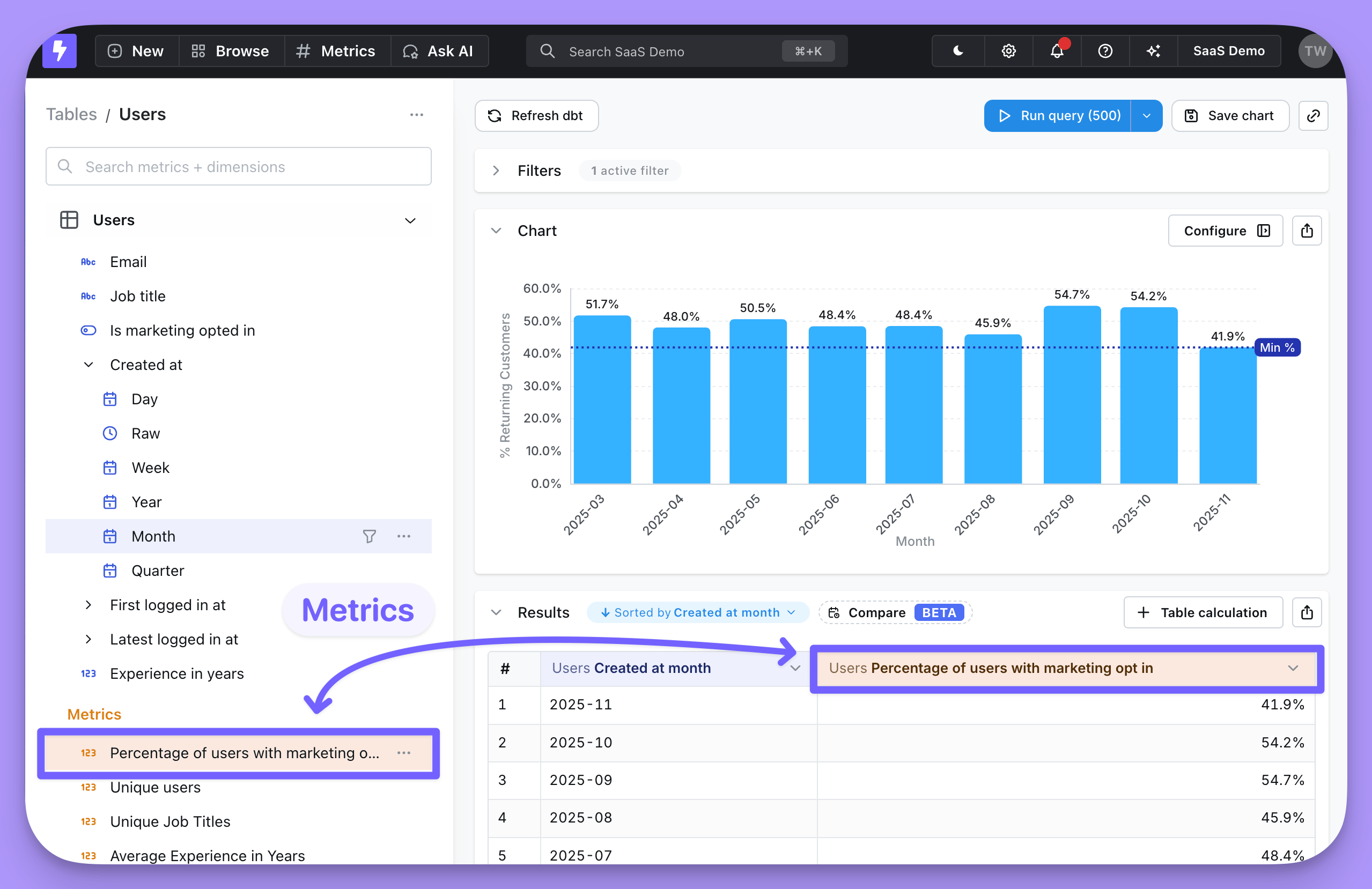
Once you've added your metrics, you can use them in Lightdash to build charts and filter results. Metrics appear in the Explore view, above dimensions and, if selected, pop us as orange fields in your results table.
 ## Let's try adding a metric to our dbt project
**This tutorial assumes you've set up the Lightdash CLI.**
If you haven't installed the Lightdash CLI yet, then [follow this guide to installing and setting it up](/guides/cli/how-to-install-the-lightdash-cli).
Watch this video for a walkthroguh of how to add a column-level metric. These are metrics that are defined on specific columns in your dbt models.
This video shows how to define table-level metrics, which are more complex metrics that can involve multiple columns.
### Add a metric to one of your dbt models
Head to your dbt project, checkout a new branch (or just work on `main` if that's your style 🤠) and add a metric to one of your dbt models.
We'd suggest starting out simple, like a `count` for a primary key in your table.
For example:
```yaml theme={null}
models:
- name: 'orders'
columns:
- name: 'status'
- name: 'order_id'
meta:
metrics:
total_order_count:
type: count
```
```yaml theme={null}
models:
- name: 'orders'
columns:
- name: 'status'
- name: 'order_id'
config:
meta:
metrics:
total_order_count:
type: count
```
```yaml theme={null}
type: model
name: orders
dimensions:
- name: status
- name: order_id
metrics:
total_order_count:
type: count
sql: ${order_id}
```
### Preview your changes using `lightdash preview`
Once you've added a metric to your dbt model, you might want to check to make sure that it's working the way you'd expect. This is where `lightdash preview` comes in handy.
**Developer previews** are temporary Lightdash projects where you can safely experiment with your metrics, dimensions and charts without affecting your production project.
So, let's spin up a developer preview and check out our changes. In your terminal, run the commands:
```bash theme={null}
lightdash preview
```
Then `cmd` + `click` to open the preview link from your terminal. Once you're in Lightdash go to `Explore` --> `Tables`, then click on the model you just updated to see your new metric and play around with it.
### Configure your metric (optional)
You can jazz up your metrics by configuring them in your .yml files. These metric configurations live under the `meta` tag of your columns, under `metrics`:
```yaml theme={null}
models:
- name: "orders"
description: "A table of all orders."
columns:
- name: "status"
description: "Status of an order: ordered/processed/complete"
- name: "order_value"
meta:
metrics:
total_sales:
type: sum
label: "Total sales (USD)"
groups: ["Sales metrics"]
round: 2
...etc.
```
```yaml theme={null}
models:
- name: "orders"
description: "A table of all orders."
columns:
- name: "status"
description: "Status of an order: ordered/processed/complete"
- name: "order_value"
config:
meta:
metrics:
total_sales:
type: sum
label: "Total sales (USD)"
groups: ["Sales metrics"]
round: 2
...etc.
```
```yaml theme={null}
type: model
name: orders
description: "A table of all orders."
dimensions:
- name: status
description: "Status of an order: ordered/processed/complete"
- name: order_value
metrics:
total_sales:
type: sum
sql: ${order_value}
label: "Total sales (USD)"
groups: ["Sales metrics"]
round: 2
...etc.
```
Things like the format, the label that people see in Lightdash, rounding, etc. - these are all configurations that you can apply to your metrics.
You can [see all of the metric configurations in our metrics reference doc here](/references/metrics#metric-configuration).
### If you're happy with your new metric, you can deploy it to production.
If you're working with a version controlled project, you'll just want to make sure to merge your changes into the branch you've connected to your Lightdash project (e.g. `main` or `master`).
Once they've been merged or if you're just working off of `main` (*rebel* 😏), you can deploy your changes.
Once you've merged your changes, you'll want to deploy them to production. To do this, just run these commands in your terminal from your dbt project:
```bash theme={null}
git checkout main # checkout main or master - or whatever your production branch name is
git pull
lightdash deploy # --target prod. If you use developer profiles in your dbt project, you might need this flag. See below.
```
This will deploy the changes in your dbt project to the Lightdash project you set up on your CLI tool earlier.
**Lightdash's deploy command will deploy using your **default dbt target** unless you specify to use a different target.**
For example, if you've set up a developer profile where it targets a dev dataset (like `dbt_khindson.my_model_names`), then you'll need to pass the production target in your `lightdash deploy` command. Something like: `lightdash deploy --target prod`.
And voilà! Your new metric is available to explore in Lightdash.
***
## Adding custom metrics in the Explore view
The fields that you see in your `dimensions` and `metrics` are created by the people maintaining your Lightdash project.
But, if there's something missing from this list of metrics, you can use `custom metrics` to add some on-the-fly calculations while you're exploring.
To read more about custom metrics, take a look at [how to create custom fields](/guides/custom-fields).
## Check out our [metrics reference sheet](/references/metrics) for more details
## Let's try adding a metric to our dbt project
**This tutorial assumes you've set up the Lightdash CLI.**
If you haven't installed the Lightdash CLI yet, then [follow this guide to installing and setting it up](/guides/cli/how-to-install-the-lightdash-cli).
Watch this video for a walkthroguh of how to add a column-level metric. These are metrics that are defined on specific columns in your dbt models.
This video shows how to define table-level metrics, which are more complex metrics that can involve multiple columns.
### Add a metric to one of your dbt models
Head to your dbt project, checkout a new branch (or just work on `main` if that's your style 🤠) and add a metric to one of your dbt models.
We'd suggest starting out simple, like a `count` for a primary key in your table.
For example:
```yaml theme={null}
models:
- name: 'orders'
columns:
- name: 'status'
- name: 'order_id'
meta:
metrics:
total_order_count:
type: count
```
```yaml theme={null}
models:
- name: 'orders'
columns:
- name: 'status'
- name: 'order_id'
config:
meta:
metrics:
total_order_count:
type: count
```
```yaml theme={null}
type: model
name: orders
dimensions:
- name: status
- name: order_id
metrics:
total_order_count:
type: count
sql: ${order_id}
```
### Preview your changes using `lightdash preview`
Once you've added a metric to your dbt model, you might want to check to make sure that it's working the way you'd expect. This is where `lightdash preview` comes in handy.
**Developer previews** are temporary Lightdash projects where you can safely experiment with your metrics, dimensions and charts without affecting your production project.
So, let's spin up a developer preview and check out our changes. In your terminal, run the commands:
```bash theme={null}
lightdash preview
```
Then `cmd` + `click` to open the preview link from your terminal. Once you're in Lightdash go to `Explore` --> `Tables`, then click on the model you just updated to see your new metric and play around with it.
### Configure your metric (optional)
You can jazz up your metrics by configuring them in your .yml files. These metric configurations live under the `meta` tag of your columns, under `metrics`:
```yaml theme={null}
models:
- name: "orders"
description: "A table of all orders."
columns:
- name: "status"
description: "Status of an order: ordered/processed/complete"
- name: "order_value"
meta:
metrics:
total_sales:
type: sum
label: "Total sales (USD)"
groups: ["Sales metrics"]
round: 2
...etc.
```
```yaml theme={null}
models:
- name: "orders"
description: "A table of all orders."
columns:
- name: "status"
description: "Status of an order: ordered/processed/complete"
- name: "order_value"
config:
meta:
metrics:
total_sales:
type: sum
label: "Total sales (USD)"
groups: ["Sales metrics"]
round: 2
...etc.
```
```yaml theme={null}
type: model
name: orders
description: "A table of all orders."
dimensions:
- name: status
description: "Status of an order: ordered/processed/complete"
- name: order_value
metrics:
total_sales:
type: sum
sql: ${order_value}
label: "Total sales (USD)"
groups: ["Sales metrics"]
round: 2
...etc.
```
Things like the format, the label that people see in Lightdash, rounding, etc. - these are all configurations that you can apply to your metrics.
You can [see all of the metric configurations in our metrics reference doc here](/references/metrics#metric-configuration).
### If you're happy with your new metric, you can deploy it to production.
If you're working with a version controlled project, you'll just want to make sure to merge your changes into the branch you've connected to your Lightdash project (e.g. `main` or `master`).
Once they've been merged or if you're just working off of `main` (*rebel* 😏), you can deploy your changes.
Once you've merged your changes, you'll want to deploy them to production. To do this, just run these commands in your terminal from your dbt project:
```bash theme={null}
git checkout main # checkout main or master - or whatever your production branch name is
git pull
lightdash deploy # --target prod. If you use developer profiles in your dbt project, you might need this flag. See below.
```
This will deploy the changes in your dbt project to the Lightdash project you set up on your CLI tool earlier.
**Lightdash's deploy command will deploy using your **default dbt target** unless you specify to use a different target.**
For example, if you've set up a developer profile where it targets a dev dataset (like `dbt_khindson.my_model_names`), then you'll need to pass the production target in your `lightdash deploy` command. Something like: `lightdash deploy --target prod`.
And voilà! Your new metric is available to explore in Lightdash.
***
## Adding custom metrics in the Explore view
The fields that you see in your `dimensions` and `metrics` are created by the people maintaining your Lightdash project.
But, if there's something missing from this list of metrics, you can use `custom metrics` to add some on-the-fly calculations while you're exploring.
To read more about custom metrics, take a look at [how to create custom fields](/guides/custom-fields).
## Check out our [metrics reference sheet](/references/metrics) for more details